How to Fullscreen Undertale On PC & MAC ?
How To Fullscreen Undertale
We all love playing games and know its benefits. It gives us an enjoyable and thrilling experience, it can be the best method of calming our mind. Similarly, we are going to talk about the game Undertale that has given the best possible experience to the users since the day of its launch. But. there are numerous players facing how to fullscreen undertale issues in the game.
Every user loves to play such games in full screen but here they are getting troubled. Thus, the article will guide you towards the problem and help you to learn games the methods that you can use in such situations. Here we will learn about the game and How to Fullscreen Undertale in different devices.
Learning About Undertale
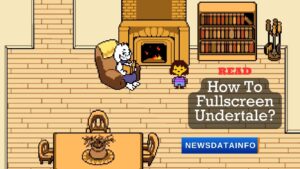
Undertale is a popular role playing game that is developed with a brand new concept. It allows players to make all the way through the game without killing the enemies. Here players play as Frisk, in which a human falls into the underworld and he is required to search his path or way back to the surface.
How to Fullscreen Undertale in PC
Playing undertale in fullscreen can given you a thrilling experience, and so you can do it by following the below-mentioned steps:
- Press F4: This can be helpful to make fullscreen as it is the default keybind of the game. But, it will work when you will not make changes by yourself.
- Fn+F4: As per your keyboard, if it is small like 60%, you can use the Fn+F4. In addition, you can set up the work of your keybinds in your keyboard software.
- Alt+Enter: At last, you can try Alt+Enter, as it is an all-around solution for fullscreen problems. This will force the game to go fullscreen, but you need to use it every single time you play the game.
How to Fullscreen Undertale on MAC
The game is also available in mac but there it launches in a window by default. If we talk about Mac, then the key binds are actually the same but there are some keys which have Mac Version. So, you can keep those keys in your mind and proceed ahead to the process. So, here we have mentioned the steps to use to understand how to fullscreen undertale in Mac:
- Use fullscreen button: On Mac, there is no maximization button. Although, you can use your mouse to locate the green button available at the top left side of the window. Then choose “Enter FullScreen”.
- Press F4: As it is mentioned above that the keybinds are technically the same in both windows and Mac. Therefore, you can press F4 to make undertale fullscreen.
- Utilization of Fn+F4: Again! the keybinds are same and so this combination is also common that helps you to resolve fullscreen issue in both Mac and windows.
- Command+Enter: Similar to the Alt+Enter combination on the window, you can go for the command+enter on Mac. It will also force the game or application to fullscreen efficiently.
Problems While Switching Undrtale Full Screen
Though players may get amazing gaming experience with a more focused and distraction free environment yet there are some problems they may encounter while switching the screen mode. Some of the common challenges and solutions are written below:
- Issues of Screen Resolution: Some of the users face screen resolution problems when they switch to full-screen mode. They find their game screen distorted or stretched in full screen mode. If you also face the same problem then you have to first go to the option menu then you have to change the screen resolution. You have to change the resolution to the original, then your problem will be fixed.
- Crashing or Freezing of the Game: Another common problem people may face is freezing or crashing of the game. It normally happens when the graphics drivers of your device are not up to date. You have to verify that drivers are updated. Then you have to start your game first in window screen resolution. After some time you can switch to full screen mode.
- Black Screen: One of the most common problems while gaming is the black screen problem. If you also find the same then you need to update the operating system you are currently using. You are also required to update the game software regularly.
Note: If any of the problems does not match or solutions do not fix your problem then you should visit Undertale’s community areas and official forums.
Conclusion
Overall, undertale is an engaging game. You can find its recent updates via the official website that seems too interesting to visit. We have mentioned the information that is best in our knowledge as per our research. As we have talked the article has covered the problem that many Users face while playing on undertale. Various People were wondering about How to Fullscreen Undertale and so described the solutions. We believe that you might have found the best details and solutions that fit your needs.
Disclaimer
The information available in the above-written Article is based on our best research. Our goal is to help our readers to make well-informed decisions. We do not guarantee the accuracy of content and so we suggest you to not rely on a single page. You can explore through more results to find the best details you want.